Update & Upgrade Deployments
To maintain stability and consistency, GlobalAI allows you to update individual deployments or perform bulk upgrades across your entire infrastructure. You can manage configuration changes, view differences between versions, and ensure all customer environments stay current with the latest template improvements.
Update a single deployment
When a new version of a template is released, you can update an existing deployment to sync its configuration.
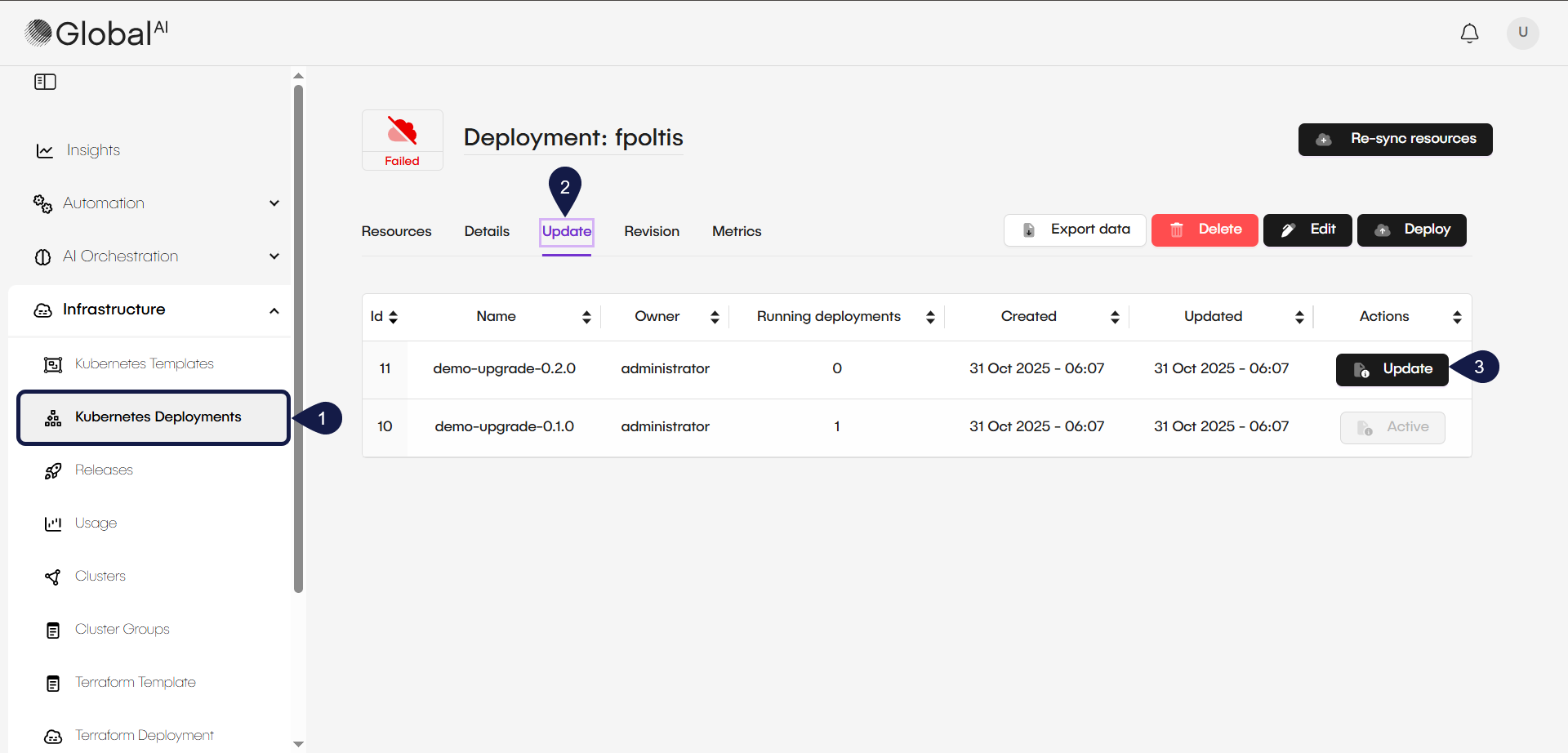
- Navigate to the Deployments list and select the deployment you wish to update.
- Go to the Update tab. Here, you will find the other versions of the template you're using.
- Select the new Template Version you want to apply and click on Update.
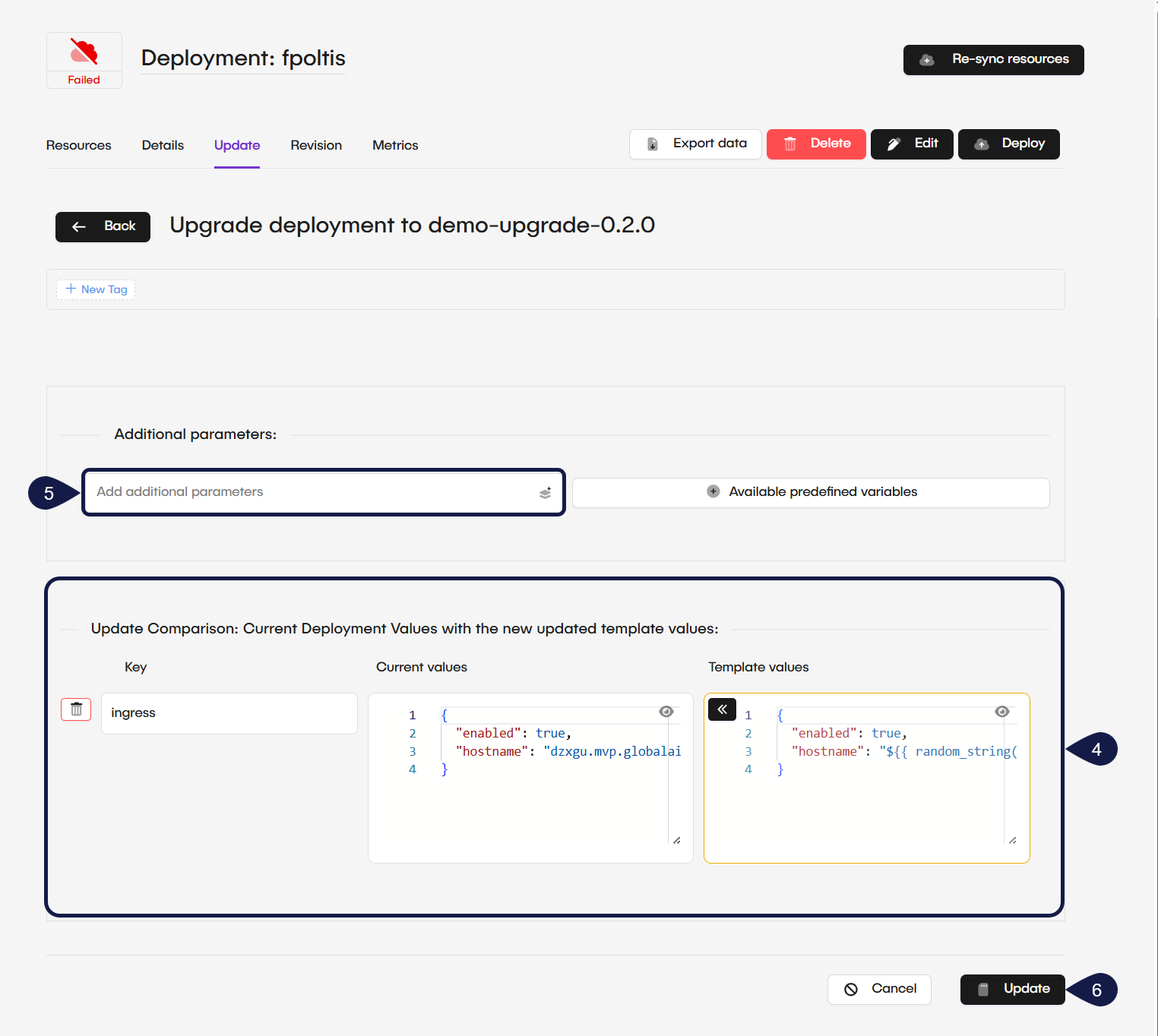
- Review the Differences. The platform walks you through a comparison process to show the difference between current deployment values and the new template version values.
- Adjust Parameters: You can choose to keep your existing values, adopt the new template values, or delete specific parameters.
- Click Update.
Each update action creates a new entry in the Revision history, allowing you to revert to previous versions if needed.

Perform bulk upgrades
For organizations managing multiple client-specific deployments on a shared infrastructure (SaaS model), Bulk Upgrades allow you to push template updates to many deployments at once.
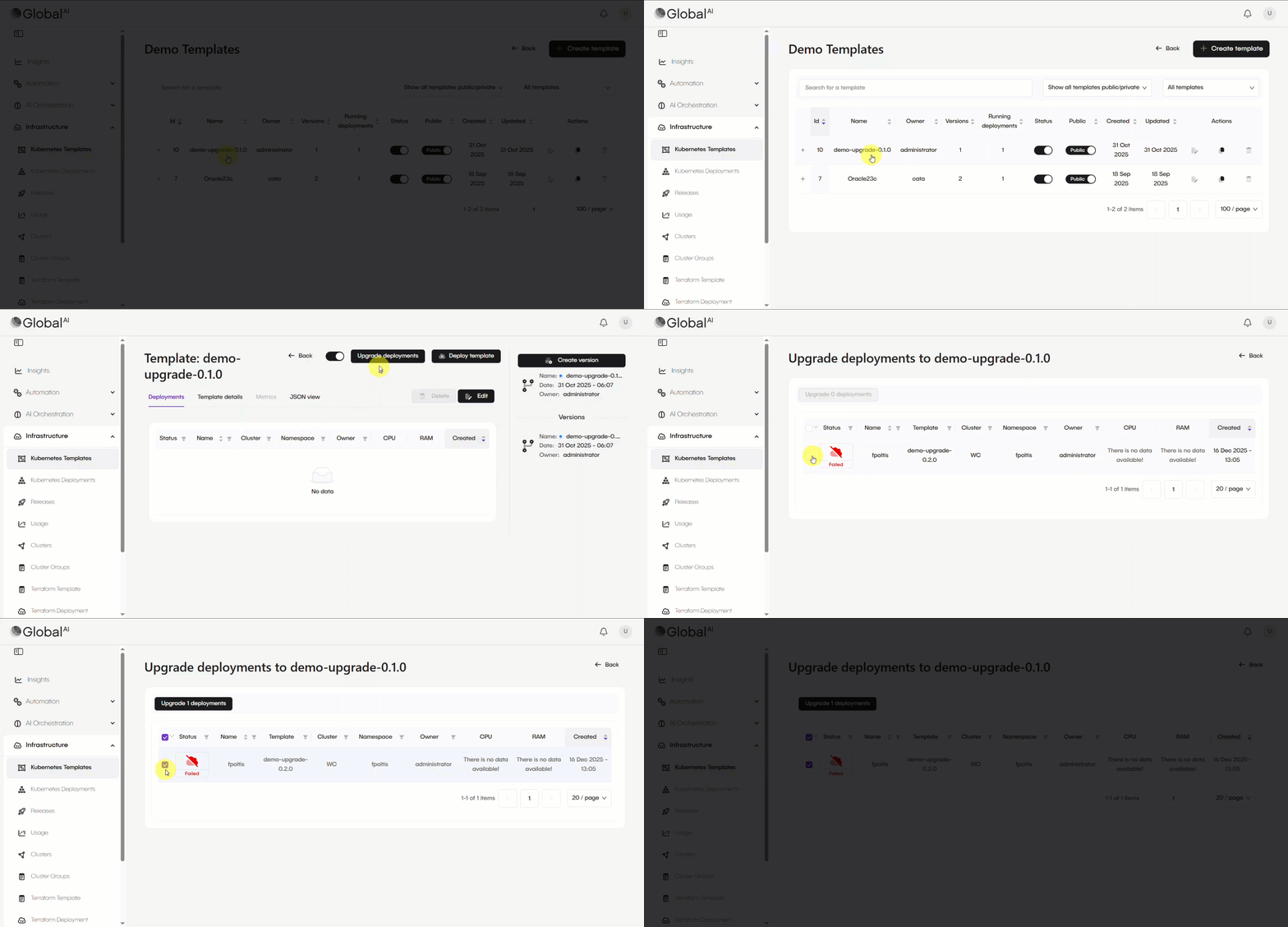
- Navigate to Infrastructure and select Kubernetes Templates.
- Select the Template Version you want to upgrade deployments to.
- Click the Upgrade Deployment button.
- Select Deployments: Check the boxes for all deployments from older versions that you want to update.
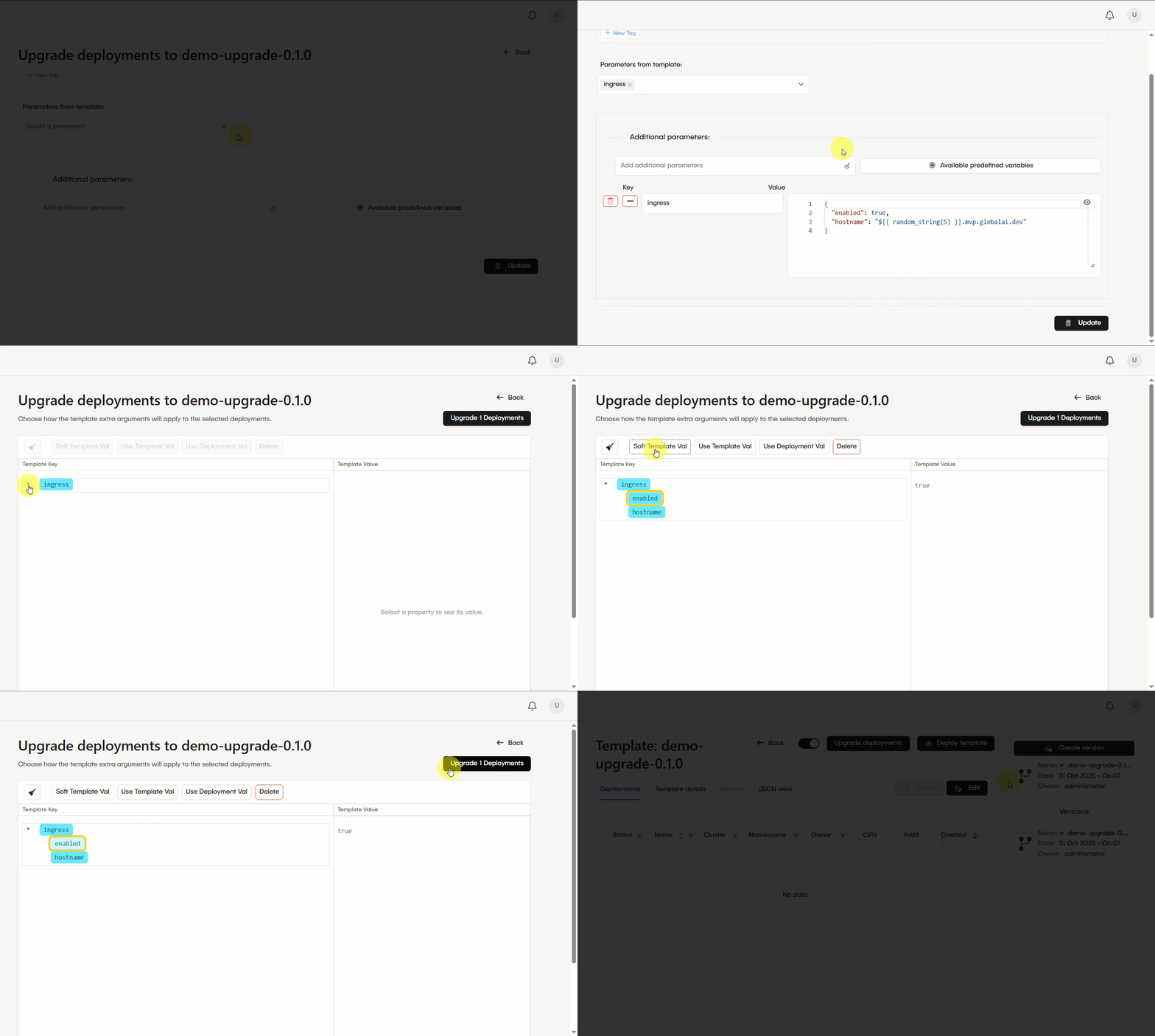
- Configure Parameter Rules: Choose how to handle parameter conflicts for the group:
- Use Template Value: Forces the deployment to use the new value from the template.
- Soft Template Value: If the deployment lacks a property, it gets the template value; otherwise, it keeps its existing value.
- Use Deployment Value: Forces the system to always use the current deployment value even if it differs from the template.
- Delete: Removes the parameter from the deployments entirely.
- Click Upgrade.
The platform creates a background Job to handle the bulk process. You can monitor the status of these upgrades in the Jobs menu to verify success or identify failed items.
Related articles
Now that you know how to update and upgrade deployments, you can explore these related guides.
Deploy and Manage Applications
Learn how to deploy and manage applications on your Kubernetes clusters.
Monitor Deployment and Metrics
Monitor the health, configuration, and resource efficiency of your Kubernetes deployments.
Create Kubernetes Templates
Discover how to organize your templates into groups for easier management. streamline the deployment and management of applications by providing reusable configurations.